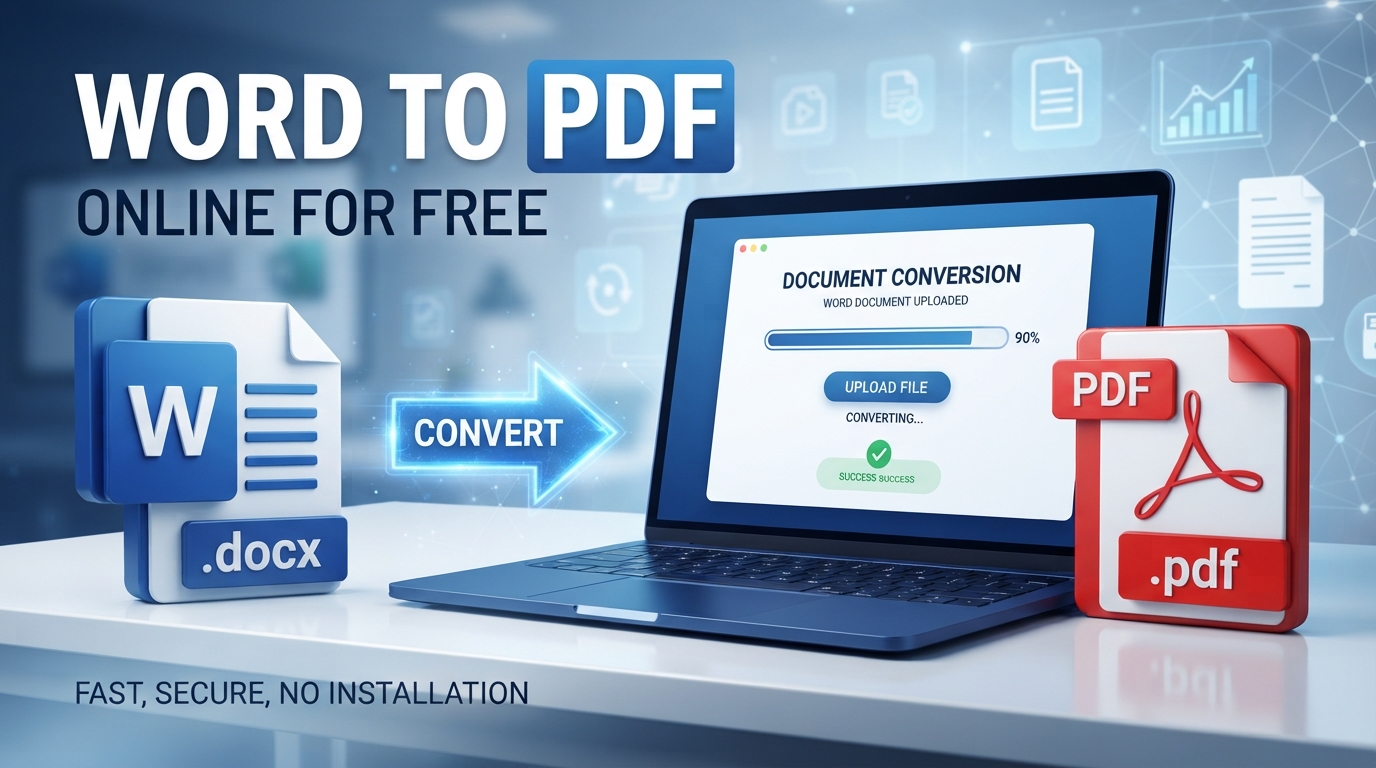
How to Convert Word to PDF Online for Free: A Complete Guide
How to Convert Word to PDF Online
for Free: A Complete Guide
If you have ever tried to send a Word document to someone and discovered
that the formatting looks different on their computer, you already know why PDF
is such a popular document format.
PDF files are designed for sharing, printing, submitting, and archiving
documents while keeping the layout consistent. Whether you are preparing a
resume, school assignment, business report, invoice, application, contract, or
personal document, converting a Word file to PDF can make the final document
easier to share and view.
The good news is that you do not always need expensive software or a
complicated desktop application. With an online Word to PDF converter, you can
convert a DOCX document into PDF in just a few steps.
What Is a Word to PDF Converter?
A Word to PDF converter is an online or desktop tool that changes a
Microsoft Word document into a PDF file.
Microsoft Word files are excellent for creating and editing documents,
but PDF is often more convenient when the document is ready to share. A PDF
helps maintain the appearance of the finished document across different devices
and operating systems.
With a tool such as the Word to PDF Converter, you can convert a DOCX
file into a PDF without going through complicated software installation or technical
procedures.
Why Convert a Word Document to PDF?
There are several reasons people convert Word documents to PDF before
sharing them.
1. PDF Preserves the Final Layout
A Word document can sometimes appear differently depending on the device,
software version, fonts, or page settings being used.
PDF is specifically designed as a fixed-layout format. This makes it
useful when you want the recipient to see the document in the intended format.
2. PDF Is Easy to Share
PDF files are widely used for email attachments, online applications,
business communication, school submissions, reports, invoices, and official
documents.
Instead of sending an editable Word document, you can send a PDF when you
want to provide a finished version.
3. PDF Works Across Different Devices
A PDF can generally be opened on computers, smartphones, tablets, and
other devices without requiring Microsoft Word.
This makes PDF a convenient format for documents that need to be shared
with different people.
4. PDF Is Useful for Printing
If a document is going to be printed, converting it to PDF can help
create a stable final version before sending it to a printer or print shop.
5. PDF Is Better for Final Documents
Word is primarily an editing format. PDF is commonly used as a final
distribution format.
For example, you might create your resume in Word, review it carefully,
and then convert it to PDF before sending it to an employer.
How to Convert Word to PDF Online
Converting a Word document to PDF can be very simple.
Step 1: Prepare Your Word Document
Open your DOCX document and check the content before conversion.
Review:
- Spelling and grammar
- Headings
- Page breaks
- Images
- Tables
- Margins
- Page numbers
- Contact information
- File name
It is always better to make final edits before creating the PDF.
Step 2: Open a Word to PDF Converter
Open the Doc2PDFPro Word to PDF Converter.
The tool is designed to convert DOCX documents into PDF files quickly and
without complicated steps. The website states that Word files are processed
locally on the device rather than uploaded to a server.
Step 3: Select Your DOCX File
Choose the Word document you want to convert.
Make sure you are selecting the correct document, particularly if you
have multiple versions of the same file.
Step 4: Convert the Document
Start the conversion process.
The converter processes the Word document and creates a PDF version that
you can save and share.
Step 5: Download the PDF
Once the conversion is complete, download the resulting PDF and open it
to check the final document.
Always review the PDF before submitting an important document.
Can You Convert DOCX to PDF Without
Microsoft Word?
Yes. You do not necessarily need Microsoft Word installed to convert a
DOCX document to PDF.
An online DOCX to PDF converter can be useful if you are working on a
computer without Microsoft Office, using a Chromebook, accessing a shared
computer, or simply looking for a quick way to convert a document.
This is one reason online PDF tools have become useful for students,
professionals, businesses, freelancers, and everyday users.
What Should You Check After Converting
Word to PDF?
Although converting a document is usually straightforward, you should
inspect the final PDF before sending it.
Pay particular attention to:
Text
Check that all text appears correctly and that there are no missing
sections.
Page Breaks
Look at the beginning and end of each page. Unexpected page breaks can
sometimes affect the appearance of a document.
Images
Make sure images are visible and positioned correctly.
Tables
If your document contains tables, check that columns and rows appear
correctly.
Headings
Verify that headings and subheadings are easy to read.
Links
If your document contains hyperlinks, test important links before
distributing the PDF.
Word to PDF for Resumes and CVs
One of the most common reasons to convert Word documents to PDF is
creating a resume or CV.
A resume is often created and edited in Microsoft Word, but the final
version may be submitted as a PDF.
A PDF resume can be useful because it gives you a final version of the
document that is easier to share and print.
Before converting your resume, check:
- Your name and contact details
- Employment history
- Education
- Skills
- Professional summary
- Page layout
- Font consistency
- Spelling
- Email address
- Phone number
Then convert the final DOCX file to PDF.
Word to PDF for Students
Students frequently work with Word documents for assignments, essays,
research papers, reports, and applications.
If an instructor or institution requests a PDF, you can create the
document in Word and convert the finished version into PDF before submission.
Before submitting a PDF assignment, check the page count, headings,
references, images, tables, and overall formatting.
Word to PDF for Business Documents
Businesses use PDFs for many types of documents, including:
- Reports
- Invoices
- Proposals
- Contracts
- Presentations
- Forms
- Business letters
- Company documents
- Product information
- Internal records
Converting a finished Word document to PDF can make it easier to
distribute the final version without encouraging recipients to edit the
original document.
How to Reduce PDF File Size
Sometimes a PDF is too large to email or upload to a website.
In that situation, converting Word to PDF is only the first step. You may
also need to reduce the PDF file size.
The Compress PDF tool can be used to reduce PDF size for easier
sharing, web uploads, and storage. The tool provides different compression
levels and optional image optimization.
Reducing the file size can be especially useful when an online
application has a strict upload limit.
How to Combine Multiple PDF Files
If you have several PDF documents that need to become one file, you can
use a PDF merger.
For example, you might have:
- A cover letter
- Resume
- Certificates
- References
- Supporting documents
Instead of sending multiple PDF attachments, you can combine them into a
single organized document using the Merge PDF tool.
How to Split a PDF
Sometimes you have a large PDF but only need a few pages.
A PDF splitting tool can help separate pages from a larger document so
you can work with or share only the pages you need.
This can be useful for reports, scanned documents, manuals, application
packages, and other multi-page PDFs.
What Is OCR PDF?
OCR stands for Optical Character Recognition.
OCR technology can recognize text contained in scanned documents and
images. This can be useful when you have a PDF that contains scanned pages
rather than normal selectable text.
An OCR
PDF tool can help extract text from scanned PDF documents so that
the information becomes easier to work with. Doc2PDFPro describes its OCR tool
as using Tesseract.js and PDF.js to process PDF content.
OCR can be useful for:
- Scanned documents
- Old documents
- Printed forms
- Receipts
- Archived records
- Scanned books
- Image-based PDFs
Can You Convert PDF Back to Word?
Yes. Sometimes the process needs to work in the opposite direction.
If you have a PDF that needs editing, a PDF to Word converter can help
transform the PDF into an editable Word document.
The PDF
to Word Converter is designed for converting PDF content into an
editable Word document.
This can be useful when you need to update text, revise a document, or
reuse information from an existing PDF.
Online PDF Tools for Everyday Document
Tasks
Converting Word files is only one part of managing digital documents.
Depending on what you need to accomplish, you may also need to:
- Compress a PDF
- Merge PDF files
- Split a PDF
- Remove PDF pages
- Extract PDF pages
- Rotate PDF pages
- Add page numbers
- Add a watermark
- Convert PDF to Word
- Convert PDF to images
- Convert images to PDF
- Extract text from PDFs
- Sign PDF documents
Having these functions available in one place can make everyday document
management much easier.
Is an Online PDF Converter Better Than
Desktop Software?
The answer depends on your needs.
Desktop software can be useful for advanced document editing and professional
workflows. However, an online PDF converter can be more convenient when you
need to complete a simple task quickly.
For example, if your only goal is to convert one DOCX file into a PDF,
installing a large software package may be unnecessary.
An online tool can be especially convenient when you are working from a
different computer or need to complete a quick conversion.
How to Choose a Good Online PDF
Converter
When choosing an online PDF converter, consider several factors.
Ease of Use
The tool should be straightforward enough that you can complete the task
without technical knowledge.
Conversion Speed
For simple documents, conversion should not require an unnecessarily
complicated process.
Privacy
If you are working with sensitive documents, pay attention to how the
service handles uploaded files and personal information.
Doc2PDFPro states that its Word to PDF conversion processes files locally
on the user's device and does not upload them to a server.
Supported Formats
If you regularly work with different document types, look for a service
that provides more than one conversion option.