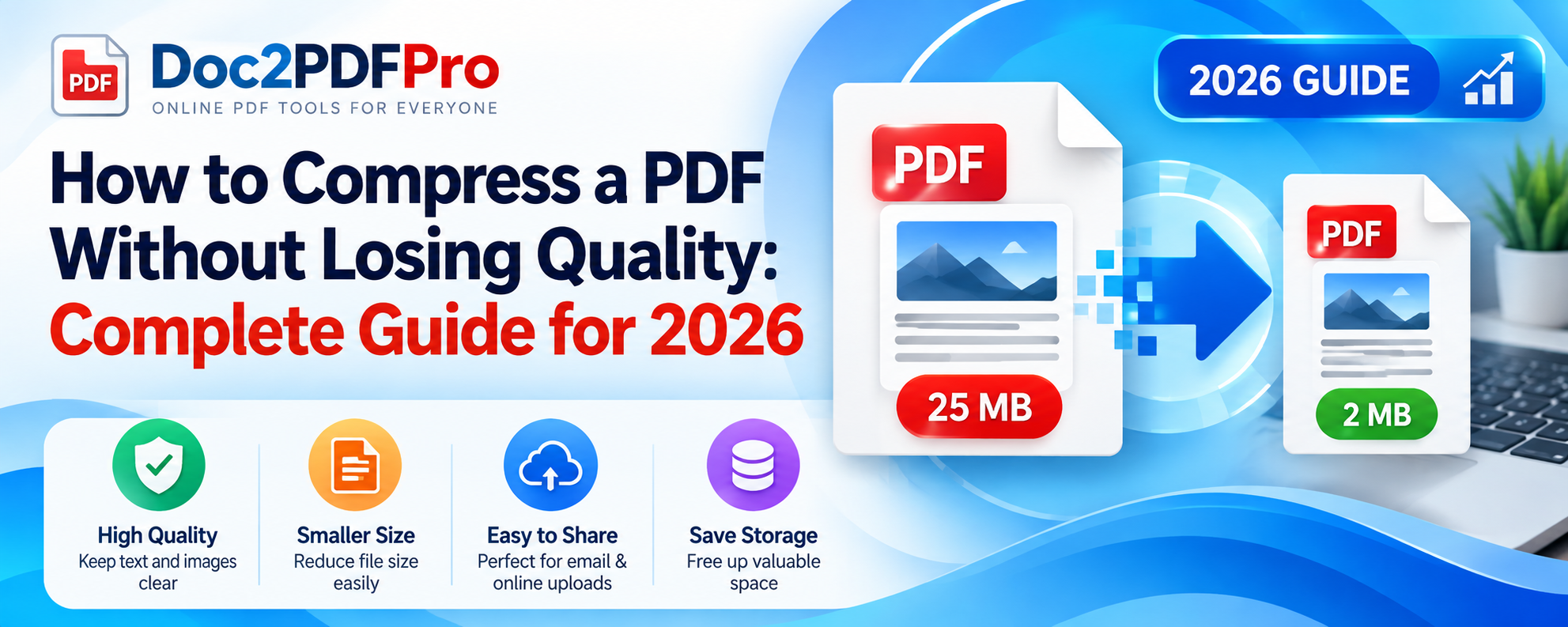
How to Compress a PDF Without Losing Quality: Complete Guide for 2026
How to Compress a PDF without
Losing Quality: Complete Guide for 2026
PDF files are one of the easiest ways to share documents, but large PDF
files can quickly become a problem. A document may be difficult to email, slow
to upload, consume unnecessary storage space, or exceed the file-size limit of
an online application.
The good news is that you can often reduce PDF file size significantly
while keeping the document looking clean and professional. The key is
understanding what is making the PDF large and how aggressively it needs to
be compressed.
In this complete 2026 guide, you will learn why PDF files become large,
how PDF compression works, how to compress a PDF online, how to protect image
and text quality, and which compression approach is best for different types of
documents.
Quick Answer
To compress a PDF without noticeable quality loss, start with lossless
optimization whenever possible. If the file is still too large, apply
controlled image compression or downsampling rather than using the strongest
possible compression setting.
For text-heavy PDFs, quality loss is usually unnecessary. For scanned
documents and image-heavy PDFs, images are often the main source of file size,
so carefully reducing image resolution or recompressing images can produce much
larger savings.
The most important rule is simple:
Do not compress more than your particular use case requires.
A PDF prepared for email does not necessarily need the same image quality
as a PDF prepared for professional printing.
What Is PDF Compression?
PDF compression is the process of reducing the amount of data stored
inside a PDF file so that the final document occupies less storage space.
A PDF can contain many different types of data, including:
- Text
- Images
- Fonts
- Graphics
- Metadata
- Forms
- Embedded files
- Other PDF objects
Not all of these components contribute equally to file size.
In many large PDFs, images are a major contributor to the overall size.
Scanned documents can become especially large because each scanned page may
effectively contain a high-resolution image.
Adobe's current documentation describes PDF optimization as reducing file
size through techniques such as compressing images, removing embedded fonts
where appropriate, and eliminating unnecessary data. Adobe Help Center
Why Is My PDF File So Large?
Before compressing a PDF, it helps to understand why it became large in
the first place.
1. High-Resolution Images
Large photographs and high-resolution graphics can add substantial data
to a PDF.
For example, a document containing several original camera photographs
may be much larger than a text-only document containing the same number of
pages.
2. Scanned Documents
Scanned PDFs are frequently much larger than digitally created documents
because every page may be stored as an image.
A 50-page scanned document can therefore become surprisingly large even
when it contains very little actual text.
3. Embedded Fonts
PDFs may contain embedded font information to preserve the document's
appearance across different devices.
Fonts are useful for maintaining consistency, but unnecessary or
duplicated font resources can contribute to file size.
4. Unnecessary Metadata and Objects
Some PDFs contain metadata, thumbnails, unused objects, or other
information that is not essential for viewing the document.
Optimization can sometimes remove or reorganize this data.
5. Repeated or Optimized Images
A PDF created through several editing and exporting processes may contain
inefficient image resources.
Simply saving a document repeatedly does not necessarily produce the
smallest possible PDF.
Lossless vs. Loss PDF Compression
One of the most important concepts to understand is the difference
between lossless and loss compression.
Lossless Compression
Lossless compression attempts to reduce file size without changing the
underlying content.
When a PDF can benefit from this type of optimization, the text, images,
and document structure can remain essentially unchanged.
This is the best starting point when document fidelity is critical.
However, lossless compression does not guarantee a dramatic reduction in
every PDF. If a file is already highly optimized, there may be little redundant
data left to remove.
Loss Compression
Loss compression achieves greater size reductions by discarding or
simplifying some information, most commonly from images.
For example, a very high-resolution image may be down sampled to a
resolution more appropriate for screen viewing.
The resulting document can still look virtually identical to the original
in normal use, but the underlying image data has changed.
This distinction matters because “smaller PDF” and “zero quality
change” are not always achievable at the same time. PdfVala
How to Compress a PDF without Losing
Noticeable Quality
The safest approach is to work gradually.
Step 1: Keep Your Original PDF
Before compressing anything, make a copy of the original document.
For example:
important-document.pdf
can become:
important-document-compressed.pdf
This gives you a clean original if you later discover that the compressed
version is unsuitable.
Step 2: Determine Your Target File
Size
Ask yourself why you need to compress the PDF.
Is it because:
- An email has an attachment limit?
- A website has an upload limit?
- You want faster sharing?
- You need to save storage space?
- You want to upload a document to
an application portal?
Your answer should determine how aggressively you compress the file.
If a website requires a PDF below a specific size, there is no reason to
compress it dramatically below that limit if doing so would unnecessarily
reduce image quality.
Step 3: Start With Moderate
Compression
Avoid immediately selecting the strongest compression option.
Start with a balanced or moderate setting and compare the result with the
original.
Check:
- Text sharpness
- Small fonts
- Images
- Logos
- Charts
- Tables
- Signatures
- Scanned pages
If the document still looks good and meets your size requirement, you are
finished.
Step 4: Check the Compressed PDF
Never judge compression only by the file size.
Open the resulting PDF and inspect important pages.
Zoom into small text and detailed images.
A file that is 90% smaller is not necessarily better if the text has
become unreadable or important graphics have become blurry.
Step 5: Compress Again Only If
Necessary
If the PDF is still too large, apply a stronger compression setting or
optimize the images further.
The goal is not to achieve the smallest possible file.
The goal is to achieve the smallest acceptable file.
How to Compress a PDF Online
For most users, an online PDF compressor is the fastest option because it
does not require installing desktop software.
The basic workflow is straightforward:
- Open a PDF compression tool.
- Select or upload your PDF.
- Choose an appropriate compression
level.
- Start the compression process.
- Download the resulting PDF.
- Compare the compressed document
with the original.
Adobe's online compressor, for example, uses selectable compression
levels to balance file size and quality. Adobe
For your readers, this is the point where you can naturally introduce
your own tool:
Try Doc2PDFPro's online PDF compressor to reduce your PDF file size
quickly without installing additional software.
Compress PDF with Doc2PDFPro https://doc2pdfpro.com/compress-pdf
How to Compress a PDF for Email
Email is one of the most common reasons people need to reduce PDF size.
Instead of automatically choosing maximum compression, first check the
attachment limit of the email service or organization you are sending the
document to.
For a document containing mostly text, moderate optimization may be
enough.
For a document containing photographs or scanned pages, image
optimization can make a much bigger difference.
If the document contains sensitive information, also consider the privacy
implications of uploading it to an online service. Check the provider's
handling and retention policies before processing confidential documents.
How to Compress a Scanned PDF
Scanned PDFs require special attention.
A scanned page is essentially an image, so reducing unnecessary image
data can dramatically reduce file size.
For a scanned document intended primarily for screen viewing, a lower
resolution may be sufficient than what would be required for high-quality
printing.
However, do not compress a scanned document aggressively if it contains:
- Tiny text
- Legal documents
- Detailed diagrams
- Signatures
- Official stamps
- Fine handwriting
- Technical drawings
Always inspect the most difficult-to-read page after compression.
How to Compress a PDF without Making
Text Blurry
Text is usually not the part of a digitally generated PDF that needs the
most aggressive compression.
The bigger problem occurs when a compression process converts entire
pages into images or excessively reduces image resolution.
To preserve readability:
Keep text-based PDFs as text-based PDFs whenever possible.
For scanned PDFs, use OCR where appropriate if searchable text is
important.
Avoid choosing the strongest compression level simply because it produces
the smallest file.
What DPI Should You Use?
DPI, or dots per inch, is particularly relevant to scanned and
image-heavy documents.
A higher DPI generally preserves more image detail but produces more
data.
A lower DPI can reduce file size but may remove fine details.
For documents intended for ordinary screen viewing, extremely high scan
resolutions are often unnecessary. For professional printing, however, image
resolution requirements can be substantially higher.
Therefore, there is no single DPI value that is ideal for every PDF.
The correct setting depends on whether the document is intended for:
- Screen viewing
- Email
- Web upload
- Archiving
- Printing
- Professional publication
How Much Can You Reduce a PDF?
There is no universal percentage.
One PDF may shrink substantially while another may barely change.
A text-heavy PDF that is already optimized may show only a modest
reduction. An image-heavy or scanned PDF may have much more room for
optimization.
Be cautious with claims that every PDF can be reduced by a fixed percentage
without any quality change. Compression results depend heavily on the
document's original structure and contents. PdfVala
Best Compression Settings for Different
PDF Types
|
PDF Type |
Recommended Approach |
|
Text-only document |
Start with
lossless optimization |
|
Business report |
Moderate
compression |
|
Resume |
Moderate
compression while preserving text and graphics |
|
Scanned document |
Optimize images
carefully |
|
Photo-heavy PDF |
Recompress/down
sample images |
|
Email attachment |
Compress until it
comfortably meets the size limit |
|
Web upload |
Related ArticlesView All
Effortlessly convert any document to PDF with our versatile PDF-to-All Converter. This tool supports various formats, ensuring seamless transitions for all your files. Whether you need to convert text, images, or spreadsheets, our converter delivers high-quality results quickly and efficiently. Simplify your document management today!
Policy Pages
|